Mobile content creation has exploded over the past few years. From YouTube Shorts to Instagram Reels and daily vlogs, creators are now producing high-quality videos directly from their smartphones. Android devices, in particular, have become powerful enough to handle editing tasks that once required expensive desktop software.
But there’s one common problem most beginners face—watermarks. Many free apps add branding to exported videos, making content look unprofessional and limiting its potential for growth or monetization.
At the same time, editing itself has evolved. Modern tools now use artificial intelligence to automate tasks like cutting clips, generating subtitles, and enhancing audio. This shift has made video editing faster, easier, and more accessible—even for beginners.
The solution? Choosing the right AI video editing without watermark.
In this guide, you’ll discover the Best AI Video Editing Apps for Android, understand what features actually matter, and learn how to create professional videos—without spending money or compromising quality.
What Are AI Video Editing Apps?
AI video editing apps are mobile tools that use artificial intelligence to simplify the editing process. Instead of manually trimming clips, syncing audio, or adding subtitles, the app handles these tasks automatically.
Think of it as having a smart assistant that speeds up your workflow.
Key AI Features in Android Video Editors
- Auto-cut and smart trimming
Detects silence, removes mistakes, and shortens clips automatically. - AI captions and subtitles
Generates subtitles in seconds, improving accessibility and engagement. - Background removal
Allows you to replace or clean backgrounds without a green screen. - Auto transitions and effects
Suggests transitions based on scene changes for smoother flow. - Voice enhancement and noise reduction
Improves audio clarity, especially in noisy environments.
These features make editing faster and reduce the learning curve significantly.
Why Choose AI Video Editing Apps Without Watermark?
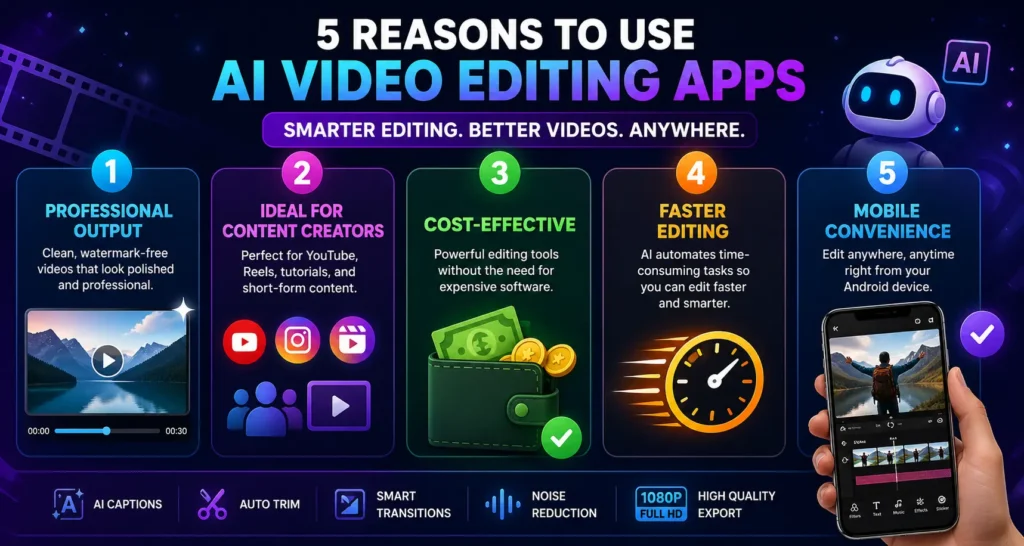
1. Professional Output (First Impression Matters)
A clean video without any branding instantly feels more polished and trustworthy.
Why This Is Important
- Viewers associate watermarks with low-quality or reused content
- Brands and clients prefer clean visuals
- It improves your overall channel credibility
Real impact:
Even strong content can lose value if it looks unprofessional. Clean output helps your videos stand out and builds trust faster.
2. Ideal for Content Creators (Build a Strong Identity)
If you’re creating content regularly, consistency and branding matter.
Why It Matters
- Your videos represent your personal or business brand
- Watermarks distract from your identity
- Clean exports help maintain a uniform style
Practical insight:
Whether it’s tutorials, vlogs, or short-form videos, having control over your visuals is essential for long-term growth.
3. Cost-Effective (Start Without Investment)
Not everyone wants to spend money before seeing results—and that’s completely valid.
What This Means
- You can start creating content without buying expensive software
- Test ideas and formats risk-free
- Upgrade only when your needs grow
Real-world benefit:
Many successful creators start with free tools and scale later. The focus should be on content, not cost.
4. Faster Editing (Save Time Where It Matters)
Editing used to take hours—but AI has changed that.
What AI Handles
- Cutting unnecessary parts
- Adding captions automatically
- Suggesting transitions
Why It Helps
- Reduces manual work
- Speeds up production
- Makes consistent uploads easier
Key takeaway:
The less time you spend editing, the more time you can invest in creating better content.
5. Mobile Convenience (Create Anytime, Anywhere)
Your phone is now a complete editing setup.
Why This Is Powerful
- No need for a laptop or high-end system
- Edit and upload videos instantly
- Perfect for creators who work on the go
Real advantage:
You can shoot, edit, and publish from a single device—making content creation faster and more flexible.
Best AI Video Editing Apps for Android Without Watermark (2026)
Here are some of the most reliable options available today:
1. CapCut
One of the most popular apps among creators.
- Auto captions and background remover
- Smooth performance on Android
- No watermark in most exports
Best for: Shorts, reels, and quick edits
2. VN Video Editor
A powerful yet simple editing app.
- No watermark at all
- Multi-layer editing support
- Clean and intuitive interface
Best for: Vlogs and regular content creation
3. KineMaster
A feature-rich editor with advanced tools.
- AI-assisted editing features
- Layer-based editing system
- Watermark removed under certain conditions
Best for: Advanced users and detailed edits
4. InShot
A beginner-friendly app with strong social media focus.
- Easy interface
- AI filters and effects
- Watermark removable by watching ads
Best for: Social media content
5. YouCut
A lightweight and fast option.
- No watermark
- Simple editing tools
- Works well on low-end devices
Best for: Beginners and quick edits
Comparison Table: Top AI Video Editing Apps
| App | AI Features | Watermark | Export Quality | Best For |
| CapCut | Auto captions, effects | No (most exports) | 1080p/4K | Shorts & Reels |
| VN Video Editor | Smart editing, layers | No | 1080p/4K | Vlogs |
| KineMaster | Advanced AI tools | Limited | 4K | Pro editing |
| InShot | Filters, AI effects | Removable | 1080p | Social media |
| YouCut | Basic AI tools | No | 1080p | Beginners |
Key Features to Look for in Android AI Video Editing Apps
1. No Watermark Export
Always double-check export settings. Some apps only remove branding under specific conditions.
2. AI Automation
Look for features like subtitles, trimming, and scene detection—these save the most time.
3. Export Quality
1080p should be the minimum standard for YouTube-quality videos.
4. Performance on Android
Choose apps that run smoothly on your device without lag or crashes.
5. User Interface
A simple interface helps you stay consistent and avoid frustration.
Comparison Table: Must-Have Features
| Feature | Why It Matters | Recommended Standard |
| No Watermark | Keeps videos professional | Must-have |
| AI Automation | Saves editing time | Auto captions, trimming |
| Export Quality | Impacts viewer experience | Minimum 1080p |
| Performance | Ensures smooth editing | Lag-free playback |
| Ease of Use | Reduces learning time | Beginner-friendly UI |
How to Choose the Best AI Video Editing App for Android
There’s no single perfect app—it depends on your needs.
1. Beginners: Choose simple apps like CapCut or InShot
If you’re just starting, your biggest challenge isn’t creativity—it’s learning the tool.
Why These Apps Work for Beginners
- Clean, easy-to-understand interface
- Drag-and-drop editing
- Ready-made templates and presets
- Minimal technical setup
What This Means in Practice
- You can create your first video in minutes
- No need to learn complex timelines or layers
- AI handles captions, cuts, and basic effects
Best for:
First-time creators, short videos, social media content
Key insight:
At the beginner stage, simplicity beats features. The faster you learn, the faster you publish.
2. Regular Creators: VN Video Editor offers more flexibility
Once you start posting regularly, your needs change.
You’ll want:
- More control over edits
- Better timeline management
- Ability to fine-tune your content
Why VN Editor Fits This Stage
- Multi-layer editing (video, audio, text)
- Precise trimming and control
- No watermark limitations
- Still relatively easy to use
What This Means in Practice
- You can create more polished and structured videos
- Customize edits instead of relying only on templates
- Maintain consistency in your content style
Best for:
Vloggers, YouTubers, and creators posting consistently
Key insight:
At this level, you move from quick edits → controlled editing.
3. Advanced Users: KineMaster provides deeper control
As your skills grow, you’ll want more advanced capabilities.
What Advanced Users Need
- Layer-based editing
- Precision control over every element
- Advanced effects and animations
- Detailed audio editing
Why KineMaster Stands Out
- Supports multiple layers (video, effects, text, audio)
- Frame-by-frame editing options
- Professional-grade control on mobile
- More customization compared to simpler apps
What This Means in Practice
- You can create cinematic or highly edited videos
- Fine-tune every detail
- Produce content closer to professional standards
Best for:
Experienced creators, detailed editing, professional projects
Key insight:
At this stage, control matters more than speed.
Also consider your device performance. A heavy app may slow down your workflow if your phone isn’t powerful enough.
Also know more about:
Best Free AI Video Editing Tools for Beginners
Top AI Models in GPT Explained for Beginners and more.
Step-by-Step: How to Edit Videos on Android Using AI Apps
1. Import Your Footage (Set the Foundation Right)
This is the first step where you bring all your content into the editor.
What to Do
- Upload video clips, images, audio, and logos
- Use drag-and-drop or direct import from your gallery/cloud
Why It Matters
- Keeps your workflow organized
- Saves time during editing
Pro tip: Import everything at once so you don’t interrupt your editing flow later.
2. Use AI Auto-Trim (Save Maximum Time)
This is where AI makes the biggest difference.
What It Does
- Detects silence and pauses
- Removes mistakes or unnecessary parts
- Shortens clips automatically
Why It Matters
- Reduces manual editing effort
- Speeds up your workflow significantly
Important: Always review the cuts—AI can sometimes remove parts you want to keep.
3. Add Captions Automatically (Boost Engagement)
Captions are essential, especially for mobile viewers.
What AI Does
- Converts speech into text
- Syncs subtitles with your video
- Allows quick edits for accuracy
Why It Matters
- Many users watch videos without sound
- Improves watch time and accessibility
Quick insight: Videos with captions often perform better, especially on social platforms.
4. Apply Transitions & Effects (Keep It Clean)
This step improves how your video looks—but it’s easy to overdo.
What You Can Add
- Scene transitions
- Basic effects or filters
- Text overlays or animations
Best Approach
- Use simple cuts and minimal transitions
- Add effects only where needed
Why it matters: Too many effects can distract viewers. Clean editing usually performs better.
5. Export in High Quality Without Watermark (Final Output Matters)
This is the final step that determines how your video looks to your audience.
Recommended Settings
- Resolution: At least 1080p
- Format: MP4
- Frame rate: Match original footage
Critical Check
- Make sure no watermark is added
- Review export settings before finalizing
Key takeaway: Even a well-edited video can lose impact if exported in low quality or with branding.
Free vs Paid Android Video Editing Apps
| Feature | Free Apps | Paid Apps |
| Watermark | Not always (depends on app) | No |
| AI Features | Basic automation | Advanced AI tools |
| Export Quality | Up to 1080p | 4K / 8K |
| Templates | Limited | Premium access |
Free apps are enough for most creators. Paid tools become useful as your needs grow.
Common Mistakes to Avoid
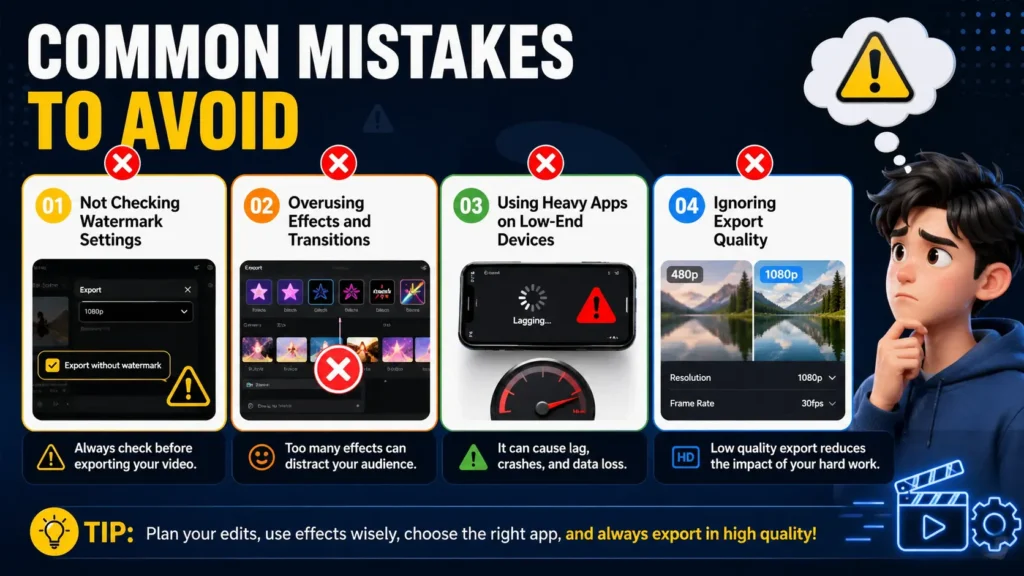
1. Not Checking Watermark Settings (Easy to Miss, Costly to Fix)
Many apps don’t clearly show watermark rules upfront.
What Usually Happens
- Watermark appears only during export
- It’s added when using certain templates or effects
- It may require login or ads to remove
Why It’s a Problem
- Ruins the professional look of your video
- Forces you to re-export or re-edit
- Delays your publishing schedule
What to Do
- Always do a test export
- Check export settings carefully
- Avoid templates that add branding
2. Overusing Effects and Transitions (Less Is More)
It’s tempting to use lots of effects—but that often backfires.
What Overuse Looks Like
- Transitions between every clip
- Too many animations or zoom effects
- Heavy filters on all scenes
Why It Hurts Your Video
- Distracts from your message
- Makes content feel cluttered
- Reduces viewer retention
Better Approach
- Use simple cuts as your default
- Add effects only where they add value
3. Using Heavy Apps on Low-End Devices (Kills Workflow Speed)
Not all apps are optimized for every device.
What Happens
- Laggy editing timeline
- Slow rendering or exports
- App crashes during editing
Why It Matters
- Slows down your entire workflow
- Makes editing frustrating
- Reduces consistency in uploads
What to Do
- Choose lightweight apps if your phone has limited RAM
- Lower preview quality while editing
- Close background apps
4. Ignoring Export Quality (Final Output Defines Everything)
Your export settings determine how your video looks to viewers.
Common Mistakes
- Exporting below 1080p
- Using incorrect frame rate
- Compressing video too much
Why It Hurts
- Blurry or pixelated visuals
- Lower viewer trust
- Reduced watch time
Best Practice
- Export at 1080p minimum
- Match original frame rate
- Use standard formats like MP4
Avoiding these mistakes can significantly improve your video quality.
Tips to Create Better Videos on Android
- Grab attention in the first few seconds
- Use captions for better reach
- Keep editing clean and focused
- Maintain a consistent style
Simple, clear videos often perform better than over-edited ones.
Conclusion
Creating professional videos on Android is no longer complicated or expensive. With the right tools, you can produce high-quality content using AI video editing apps without watermark—without worrying about branding or complex workflows.
The key is to choose an app that fits your needs, learn it well, and stay consistent.
Start with a free tool, focus on improving your content, and upgrade only when necessary. Pick one app from this list and create your first video today—because taking action matters more than waiting for perfection.
In the long run, growth isn’t about the tools you use—it’s about the value you deliver through your videos.
Consistency beats complexity—every time.
Frequently Asked Questions (FAQs)
1. Which is the best AI video editing app for Android without watermark?
The best AI video editing apps for Android without watermark include CapCut, VN Video Editor, and YouCut. These apps offer clean exports, AI-powered editing features, and are suitable for both beginners and regular content creators.
2. Are free Android video editors safe to use?
Yes, most free Android video editing apps are safe to use if downloaded from trusted sources like the Google Play Store. Always check app permissions, reviews, and developer credibility before installing.
3. Can I use AI video editing apps for YouTube monetization?
Yes, most AI video editing apps without watermark allow commercial use, making them suitable for YouTube monetization. However, you should always review the app’s licensing terms, especially for templates, music, and stock assets.
4. Do Android AI video editing apps support 4K editing?
Some Android AI video editing apps support 4K editing and export, but this feature is often limited to premium versions. Free versions typically offer export up to 1080p.
5. Which AI video editing app is best for beginners?
For beginners, InShot and CapCut are among the best options. They provide simple interfaces, ready-to-use templates, and AI features that make video editing easy to learn.